Updating the Dongle Driver
This guide explains how to reinstall the Windows driver for the green USB security device (dongle).
When to Update
You may need to update the dongle driver if:
- Black Magic cannot detect your license despite the dongle being connected
- Windows has lost recognition of the hardware
- You've recently updated Windows
Steps
-
Unplug your green dongle from the USB port
-
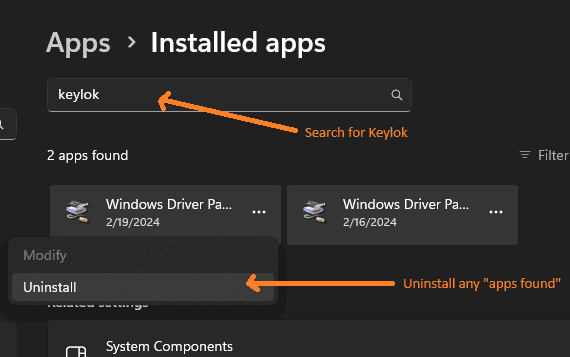
Open Add or Remove Programs in Windows and search for "Keylok"
-
Uninstall any applications found in the Keylok search results
-
Restart your computer
-
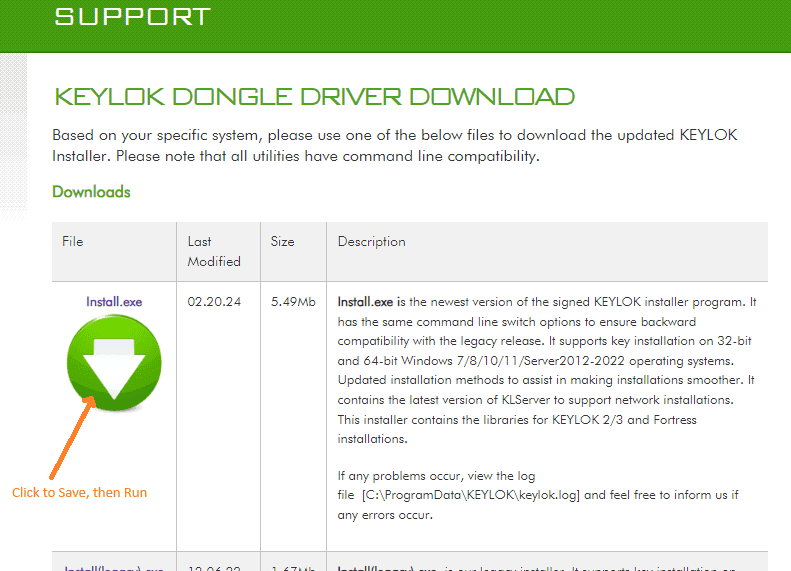
Download the latest dongle utility from the Keylok support website: https://www.keylok.com/support/install-utility-download
-
Run the downloaded utility with the "Uninstall" option enabled
-
Restart your computer again
-
Run the utility once more, this time selecting:
- "KEYLOK 2 (USB w/Driver)"
- "Standalone" options
-
Click "Begin Install"
-
After installation finishes, insert the dongle
-
Run Black Magic
Need Help?
For assistance with this process, contact the support team at support@posttimedaily.com.