Installing Post Time Daily
The most recent version of Post Time Daily is available at:
https://services.posttimedaily.com/software/apps/PostTimeDaily/2.4/latest
You may also download the latest version from your account page.
Walkthrough Video
The following short video walks through downloading and installing the Post Time Daily software using the Microsoft Edge browser. Your browser may vary slightly from the video.
Browser Download Warnings
Some browsers may flag the download as suspicious. When this occurs, your browser provides an option to override the block and retain the file. The download completion notification typically appears in your browser's upper-right corner. You can then access the installer from your downloads list or by double-clicking it from your saved files location.
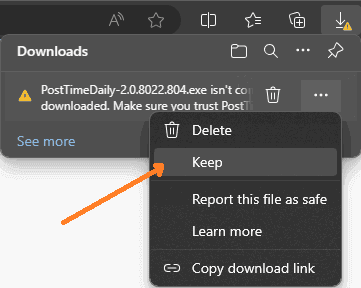
Windows Security Prompts
Windows may display security warnings during installation. Here's how to proceed:
First Warning Screen
This should no longer be an issue; however, older versions of the software were not digitally signed, resulting in the following warning. If you do see a this message, click More info followed by Run anyway.
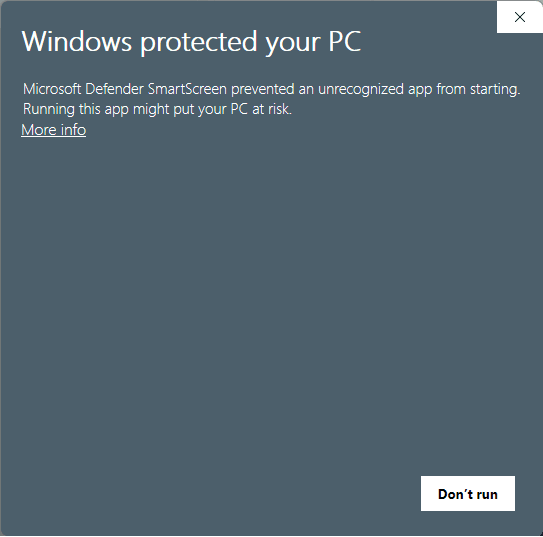
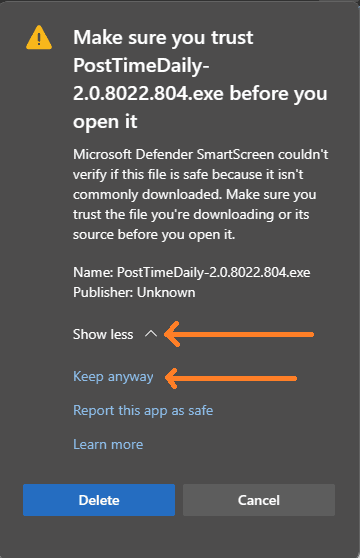
Second Warning Screen
Again, this should no longer be an issue; but if you do encounter it, click Show More then Keep anyway:
Permission Dialog
When the permission dialog appears, click Yes and follow the remaining prompts.
Completion
Once installation finishes successfully, Post Time Daily is ready to use.
Need Help?
If you encounter any issues during installation, please contact us at support@posttimedaily.com or visit our Contact Us page.