Preferences
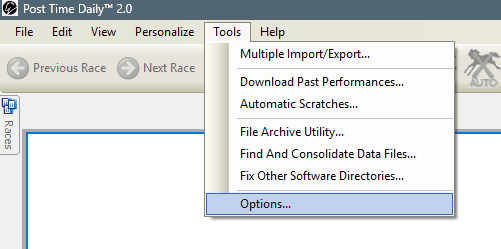
The Post Time Daily software offers configurable options accessible through Tools > Options menu:
General Tab
This section manages data storage locations for the application.
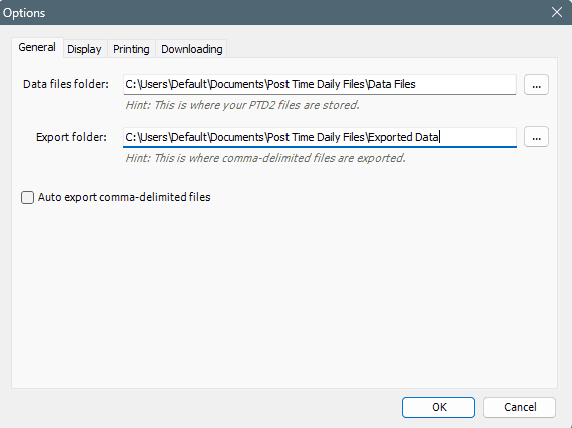
- Data files folder: Where the program locates downloaded
.PTD2files - Export folder: Location for CSV file exports compatible with third-party applications like spreadsheets
- Auto export comma-delimited files: When enabled, automatically converts
.PTD2files to CSV format; when disabled, requires manual export through the File menu
Warning: Be careful when changing the directory settings as it affects where the software looks for and stores your downloaded data files!
Display Tab
Customization options for user interface elements.
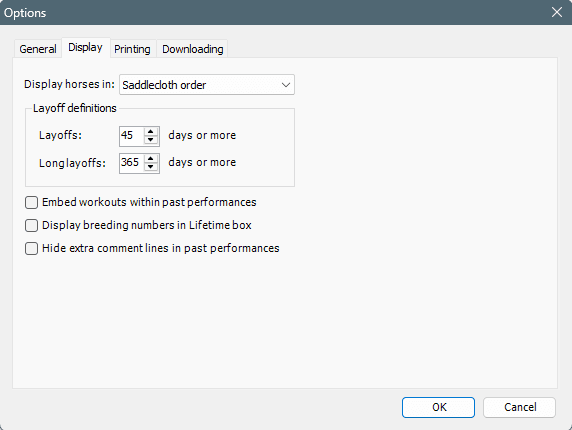
- Display horses in: Choose between Saddlecloth order (program number) or Post position order
Layoff Definitions
- Layoffs: Number of days triggering a single layoff line in past performances
- Long layoffs: Days threshold for displaying double horizontal lines
Additional Options
- Embed workouts within past performances: Places workouts inline by date when checked; displays beneath past performances when unchecked
- Display breeding numbers in Lifetime box: Shows turf and off-track ratings in upper-right corner when enabled; upper-middle section when disabled
Printing Tab
Configuration for past performance printouts.
-
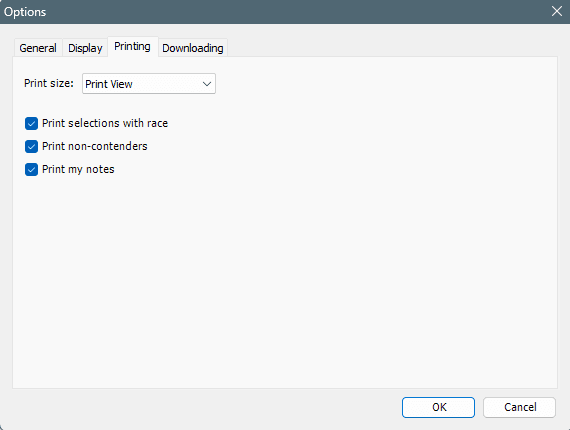
Print size: Four options balancing text size and information density:
- Small Print View
- Print View
- Enlarged View
- Super Enlarged View
-
Print selections with race: Includes Super Consensus selections at race bottom when enabled
-
Print non-contenders: Includes marked non-contenders in printout when checked
-
Print my notes: Appends race notes following each race when enabled
Downloading Tab
Settings for data and software update retrieval.
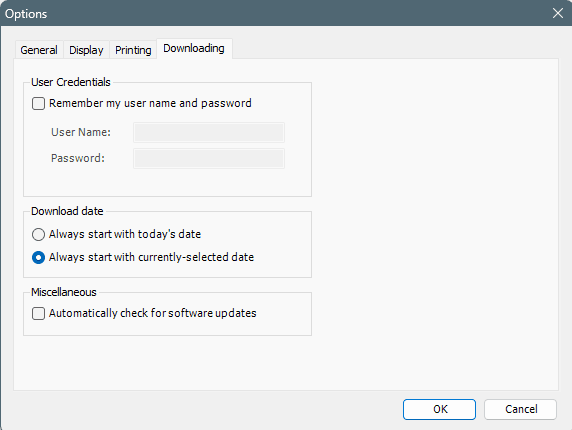
User Credentials
- Remember my user name and password: Securely stores credentials to eliminate re-entry during downloads
Download Date
- Always start with today's date: Opens Download Dialog showing current date regardless of viewing history
- Always start with currently-selected date: Opens Download Dialog matching currently displayed race date
Miscellaneous
- Automatically check for software updates: Checks for new versions on startup; manual checking available via Help menu when disabled